
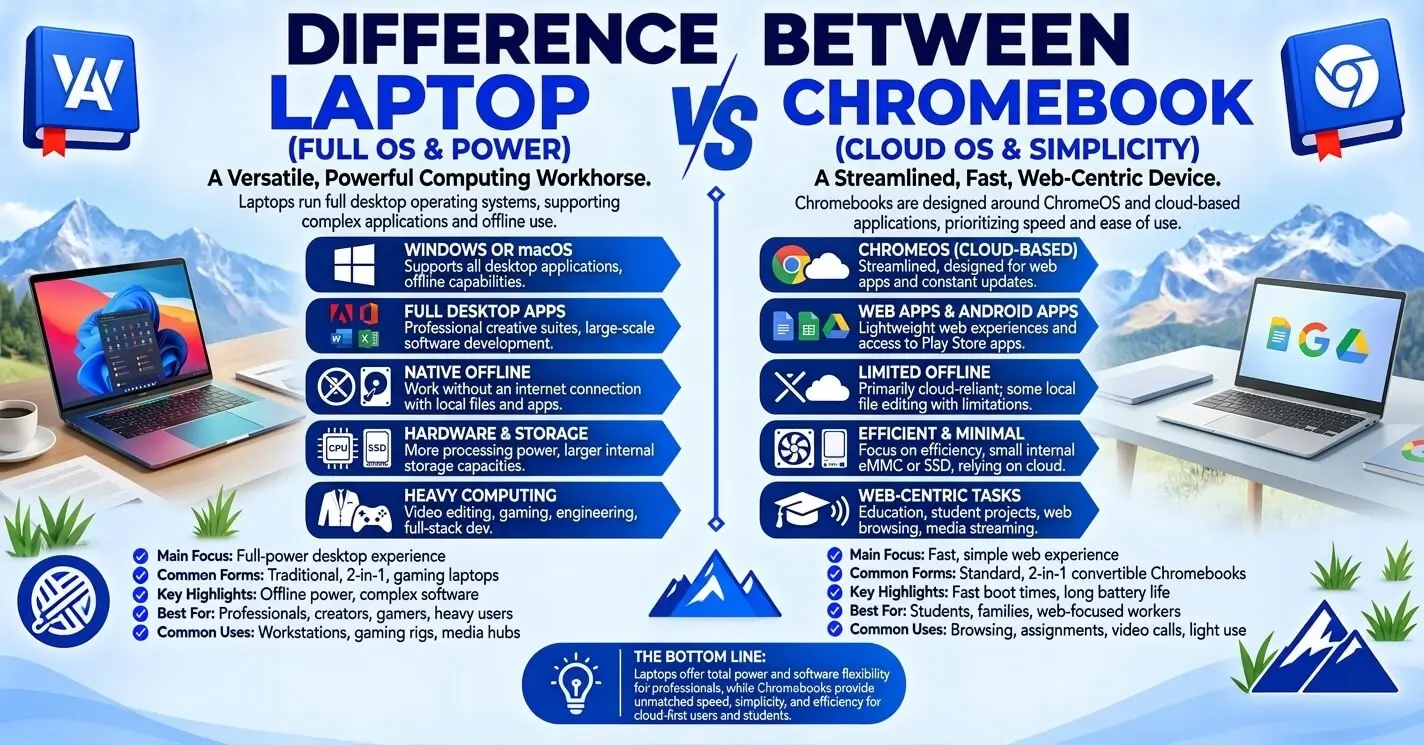
The difference between a laptop and a Chromebook is easier to understand once you clear up one common misconception: a Chromebook is a type of laptop.
The real comparison is usually between a Chromebook running ChromeOS and a more traditional laptop running Windows or macOS. They can look almost identical and perform many of the same everyday tasks, but their operating systems, software compatibility, storage options, and ideal use cases can be quite different.
If you mainly browse the web, use Google Workspace, attend online classes, stream media, and work with cloud-based applications, a Chromebook may provide everything you need. If you depend on specialized desktop software, demanding games, or applications that require Windows or macOS, a traditional laptop may be necessary.
Quick Answer
A Chromebook is a laptop that runs ChromeOS, while a traditional laptop may run Windows or macOS.
The biggest difference is the software environment. Chromebooks are designed around ChromeOS, web applications, cloud services, and supported Android and Linux applications. Windows and macOS laptops generally provide broader access to traditional desktop software.
So the question is not really “Chromebook or laptop?” It is:
“Which type of laptop can run the software and handle the tasks I need?”
Chromebook vs Laptop at a Glance
| Feature | Chromebook | Windows/macOS Laptop |
|---|---|---|
| What it is | A type of laptop | A broader laptop category |
| Operating system | ChromeOS | Windows or macOS |
| Main strength | Web-based and cloud-focused computing | Broad desktop software compatibility |
| Web browsing | Excellent | Excellent |
| Google Workspace | Excellent | Excellent |
| Microsoft 365 | Web apps available | Desktop and web options |
| Desktop Windows software | Not natively | Windows laptops support it |
| Linux development | Available on supported Chromebooks | Available through native or configured environments |
| Offline use | Supported for compatible apps | Broad offline functionality |
| Local storage | Often more limited | Usually wider range of storage |
| Gaming | Android/cloud gaming and supported titles | Much broader native PC gaming |
| Typical advantage | Simplicity and easy cloud integration | Flexibility and software choice |
What Is a Laptop?
A laptop is a portable computer with an integrated screen, keyboard, battery, processor, memory, storage and other computer components.
The word laptop describes the form factor rather than one particular operating system.
A laptop can run:
- Windows
- macOS
- Linux
- ChromeOS
- and, depending on the hardware, other operating systems
This is why saying “laptop versus Chromebook” is technically imprecise. A Chromebook belongs to the larger laptop category.
In everyday shopping language, however, people often use “laptop” to mean a Windows laptop or MacBook, and that is usually what they mean when they search for the difference between a laptop and a Chromebook.
What Is a Chromebook?
A Chromebook is a laptop designed to run ChromeOS, Google’s operating system.
ChromeOS is built around the Chrome browser and Google’s ecosystem, but modern Chromebooks are capable of much more than web browsing.
Depending on the device and software support, a Chromebook can be used for:
- Google Docs, Sheets and Slides
- video meetings
- web applications
- Microsoft 365 web apps
- streaming
- Android applications
- Linux development tools
- photo and video applications
- cloud gaming
- schoolwork
- everyday productivity
That means the old description of a Chromebook as simply “a browser in a laptop” is no longer sufficient.
What Is the Main Difference Between a Laptop and a Chromebook?
The biggest difference is the operating system and the software ecosystem it provides.
A typical Windows laptop gives you access to traditional Windows desktop programs as well as web applications.
A MacBook provides the macOS software ecosystem.
A Chromebook uses ChromeOS and is designed heavily around web-based services, supported applications, and Google’s ecosystem.
This difference affects almost everything else:
- which programs you can install
- how applications work
- how files are stored
- how much local storage you need
- how you work offline
- which games you can play
- which professional tools are available
- how the device is updated
The simplest rule
If your required software works well on ChromeOS, a Chromebook can be enough.
If your required software specifically needs Windows or macOS, choose a laptop that supports that operating system.
Software and App Compatibility
This is usually the most important difference.
A Chromebook can access a huge range of web applications. Google Docs, Gmail, YouTube, Zoom, Canva and many other services work through the browser.
Microsoft 365 is also available through the web on Chromebooks, including Word, Excel, PowerPoint, OneNote and OneDrive.
However, there is an important distinction:
The Windows or Mac desktop versions of Microsoft 365 cannot simply be installed on a Chromebook.
So if your work depends on a particular desktop application, check its ChromeOS compatibility before buying.
This is particularly important for:
- specialist business software
- engineering and CAD applications
- professional video-editing programs
- certain accounting applications
- specialized scientific software
- Windows-only utilities
- some professional plugins
The safest approach is to make a list of your essential applications first.
Performance: Chromebook vs Laptop
There is no universal rule that every laptop is faster than every Chromebook.
Hardware varies enormously.
Some inexpensive Chromebooks use modest processors and limited memory, while premium Chromebook models can have considerably stronger hardware.
Likewise, Windows and Mac laptops range from inexpensive entry-level computers to powerful workstations and gaming machines.
ChromeOS can feel responsive on relatively modest hardware because the operating system is designed around a different computing model.
However, demanding workloads can still require more powerful hardware.
If you regularly perform tasks such as:
- advanced video editing
- 3D rendering
- professional music production
- large software development builds
- engineering simulations
- demanding local gaming
you should examine the exact hardware and software requirements rather than assuming a Chromebook will handle them.
Storage: Chromebook vs Laptop
Storage is another important difference.
Many Chromebooks have historically shipped with less local storage than conventional laptops because ChromeOS is designed to work well with cloud services.
For example, Google Drive can keep files synchronized across devices.
A traditional Windows laptop may offer considerably more local SSD storage, making it convenient for users who keep:
- large video libraries
- games
- software installations
- high-resolution photographs
- large project files
- offline media
But cloud storage is not exclusive to Chromebooks. Windows and Mac users can also use services such as OneDrive, Google Drive or iCloud.
The practical question is:
How much data do you need to keep physically on the computer?
Can a Chromebook Work Without Internet?
Yes.
A Chromebook is not completely dependent on an internet connection.
Compatible applications can provide offline functionality. For example, Google documents, spreadsheets and presentations can be configured for offline work, and other supported applications can continue working without Wi-Fi.
However, some services obviously require an internet connection.
For example, a cloud-based application cannot perform its normal online functions when the network is unavailable.
So the more accurate rule is:
Chromebooks can work offline, but their offline capabilities depend more heavily on the applications and services you use.
If you frequently travel without reliable internet access, check the offline capabilities of your essential apps before purchasing.
Battery Life and Portability
Chromebooks are often associated with long battery life and lightweight designs, although this is not guaranteed for every model.
A Chromebook can be an attractive option for people who carry a computer around all day, especially students and travelers.
Traditional laptops cover a much wider hardware range, however. Some are extremely thin and light, while gaming laptops and mobile workstations can be considerably heavier.
Therefore, compare the actual model rather than assuming:
Chromebook = lightweight
or
Laptop = heavy
The hardware design matters.
Gaming: Chromebook vs Laptop
Gaming is one area where the operating-system difference can become especially important.
A Windows gaming laptop can run a much broader selection of native PC games, particularly when equipped with a dedicated graphics processor.
Chromebooks can support several gaming approaches, including:
- Android games on supported devices
- browser-based games
- supported Linux games
- cloud gaming services
Cloud gaming can make demanding games accessible from compatible Chromebooks because the game is processed remotely rather than entirely by the Chromebook.
But cloud gaming depends on factors such as:
- internet speed
- latency
- service availability
- game compatibility
- subscription requirements
If your priority is native PC gaming, a Windows gaming laptop generally provides a much broader software ecosystem.
Programming and Web Development
Chromebooks are more capable for development than their old reputation suggests.
Supported ChromeOS devices can provide a Linux development environment, allowing developers to use command-line tools, editors and other development software.
That can make a Chromebook suitable for:
- web development
- HTML/CSS
- JavaScript
- Python
- Git
- command-line development
- some Android development workflows
- cloud development
However, developers should still check the requirements of their particular toolchain.
If you need a specialized Windows-only IDE, driver, virtualization environment or enterprise application, a Windows laptop may be more appropriate.
For web developers whose workflow is largely browser-based and Linux-compatible, ChromeOS can be surprisingly capable.
Which Is Better for Students?
The answer depends on the student’s course requirements.
A Chromebook can be well suited to students who mainly need:
- Google Classroom
- web research
- Google Docs
- online assignments
- video meetings
- presentations
- cloud storage
The situation changes when a course requires specialized software.
For example, a student studying engineering, architecture, advanced media production or another field with specific desktop applications should check the software requirements before choosing a Chromebook.
Student rule
If the school’s required software works on ChromeOS, a Chromebook may be sufficient.
If the course requires Windows or macOS software, buy a compatible laptop instead.
Common Mistakes With Chromebooks and Laptops
Mistake 1: Thinking a Chromebook is not a laptop
Incorrect assumption:
“I need a laptop, so a Chromebook doesn’t count.”
Correct:
A Chromebook is a type of laptop.
The distinction is primarily its operating system and software ecosystem.
Mistake 2: Assuming Chromebooks always need the internet
Incorrect assumption:
“A Chromebook becomes useless without Wi-Fi.”
Correct:
Many Chromebook applications support offline work.
The limitation is that not every web service works offline.
Mistake 3: Assuming every Chromebook is underpowered
Incorrect assumption:
“All Chromebooks are basic computers.”
Correct:
Chromebook hardware ranges from inexpensive entry-level models to more capable Chromebook Plus and premium devices.
Always compare the processor, RAM, storage, display and other specifications of the actual model.
Mistake 4: Assuming Microsoft Office is completely unavailable
Incorrect assumption:
“You cannot use Word or Excel on a Chromebook.”
Correct:
Microsoft 365 web applications are available on Chromebooks.
The important distinction is that the traditional Windows/macOS desktop versions cannot simply be installed on ChromeOS.
Common Collocations and Phrases
When discussing these devices, you will commonly see phrases such as:
Chromebook
- Chromebook laptop
- Chromebook Plus
- ChromeOS device
- Chromebook for students
- Chromebook for school
- Chromebook for work
- Chromebook apps
- Chromebook offline mode
- Chromebook battery life
- Chromebook storage
Laptop
- Windows laptop
- gaming laptop
- business laptop
- laptop computer
- laptop software
- laptop storage
- laptop performance
- laptop battery life
- desktop applications
- traditional laptop
These phrases also reveal why the comparison is really about different computing platforms, not two completely separate types of hardware.
Can a Chromebook Replace a Laptop?
For many users, yes—but not for every workflow.
A Chromebook can replace a traditional laptop when the user’s important tasks can be completed through:
- web applications
- Google Workspace
- supported Android applications
- supported Linux applications
- compatible offline applications
- cloud services
It becomes a poor fit when essential work depends on software that requires Windows or macOS.
Before buying, make a list of your five most important applications.
For each one, ask:
- Does it work in Chrome?
- Is there a ChromeOS version?
- Is there a supported Android version?
- Is there a Linux version?
- Does it require Windows or macOS?
- Does it need to work offline?
This is a much better test than simply comparing processor names or prices.
When to Use a Chromebook
Choose a Chromebook when most of your computing happens online or through supported applications.
A Chromebook can make sense for:
- web browsing
- Google Workspace
- schoolwork
- online research
- video calls
- cloud-based work
- streaming
- lightweight productivity
- travel
- web development
- users who want a simple computing environment
When to Use a Windows or Mac Laptop
Consider a traditional Windows or macOS laptop when you need:
- specialized desktop applications
- demanding creative software
- extensive local storage
- native PC gaming
- specialized professional tools
- particular Windows or Mac applications
- maximum flexibility in installed software
The key is not that traditional laptops are automatically “better.”
They simply provide a different software environment that may be necessary for certain workloads.
How to Remember the Difference
Use this simple rule:
Chromebook = laptop + ChromeOS
Then remember:
ChromeOS determines what software you can run.
If your work lives mostly in the browser, ChromeOS may be all you need.
If your work depends on traditional desktop software, check compatibility before choosing a Chromebook.
Which One Should I Use?
Your choice depends mainly on the software you need and how you use your computer.
- Everyday browsing, email, and streaming: A Chromebook can be a practical choice.
- Google Docs, Sheets, and Slides: A Chromebook is usually sufficient.
- Microsoft 365 through a web browser: A Chromebook can handle web-based Word, Excel, and PowerPoint.
- Windows-only applications: Choose a Windows laptop.
- macOS-only applications: Choose a Mac.
- Native PC gaming: A Windows gaming laptop offers broader compatibility.
- Web development with Linux-compatible tools: A Chromebook may work well.
- Specialized professional software: Check the application’s operating-system requirements before buying.
- Large amounts of local data: Compare the SSD capacity of individual models rather than choosing based on the laptop category alone.
A Simple Rule
Choose the device that supports the software you actually need. The operating system matters more than whether the computer is marketed as a Chromebook or a traditional laptop.
X or Y? Practice Examples
Choose Chromebook or traditional laptop for each situation.
- You mainly use Gmail, Google Docs and YouTube.
- You need a Windows-only accounting program.
- You want to attend online classes and write assignments.
- You want to play demanding native PC games.
- You use browser-based web development tools and Linux software.
- You need a specialized engineering application.
- You mostly work with cloud documents and video meetings.
- You need a computer for advanced local video production.
Answers
- Chromebook — the workflow is primarily web-based.
- Windows laptop — the required application needs Windows.
- Chromebook — common school tasks can work well on ChromeOS.
- Windows gaming laptop — native PC gaming has broader support.
- Chromebook may work — Linux support can make ChromeOS suitable for many development workflows.
- Traditional laptop — verify the software’s operating-system requirements.
- Chromebook — cloud-based productivity is one of its strengths.
- Traditional laptop — demanding local creative workloads may require software and hardware unavailable on a particular Chromebook.
Frequently Asked Questions
What is the difference between a laptop and a Chromebook?
A Chromebook is actually a type of laptop. The main difference is that a Chromebook runs ChromeOS, while traditional laptops commonly run Windows or macOS. This affects software compatibility, storage, offline workflows and other aspects of how the computer is used.
Are Chromebooks laptops?
Yes. Chromebooks are laptops. The word “Chromebook” identifies a laptop that uses ChromeOS.
Is a Chromebook the same as a Windows laptop?
No. Both are laptops, but they use different operating systems. A Chromebook runs ChromeOS, while a Windows laptop runs Microsoft Windows.
Can a Chromebook replace a laptop?
For many users, yes. It can replace a traditional laptop when the required applications work on ChromeOS. It may not be suitable when essential software requires Windows or macOS.
Can I use Microsoft Word and Excel on a Chromebook?
Yes. Microsoft 365 provides web versions of Word, Excel, PowerPoint and other services that can be accessed from a Chromebook. However, the traditional Windows and Mac desktop versions cannot simply be installed on ChromeOS.
Can I use a Chromebook without Wi-Fi?
Yes. Supported applications can work offline. Google Docs, Sheets, Slides and other supported services can provide offline functionality when configured correctly. However, applications that require an internet connection will not work normally offline.
Are Chromebooks good for gaming?
They can be suitable for Android games, browser games and supported cloud-gaming services. If you specifically want to run a broad selection of demanding native PC games locally, a Windows gaming laptop is generally a better fit.
Can I code on a Chromebook?
Yes. Supported Chromebooks can run Linux development environments, allowing developers to use many programming tools, editors and command-line utilities.
Do Chromebooks have less storage than laptops?
Many Chromebooks have historically used less local storage because they are designed to work closely with cloud services. However, storage varies by model, so compare the actual specifications rather than relying on the category alone.
How long does a Chromebook receive updates?
The support period depends on the specific Chromebook model. Google publishes an Auto Update Expiration date for individual devices, and newer Chromebook models can receive many years of updates.
Conclusion
The biggest difference between a laptop and a Chromebook is not the shape of the device—it is the operating system and software ecosystem.
A Chromebook is a laptop running ChromeOS, designed particularly well for web-based work, cloud services, supported applications, schoolwork and everyday productivity. Windows and macOS laptops provide access to broader traditional desktop software and can be better suited to specialized applications, demanding workloads and native PC gaming.
The practical rule is simple:
Choose a Chromebook when the software you need works well on ChromeOS. Choose a Windows or Mac laptop when your essential software requires that platform.